












RecurDyn V9R2 User Interface Enhancements
Let’s briefly review the following new RecurDyn functionality:
- System Navigator– quickly identify structures of subsystems and immediately move to the desired subsystem regardless of hierarchical order
- CAD Import Enhancements– intuitively identify CAD hierarchical structures and effectively import original CAD structures
- General Grouping– group any combination of desired entities together
System Navigator
With the newly added System Navigator, it is now possible to understand the internal entity structure of one or several Subsystems belonging to a model at a glance, and easily enter the Edit mode of the desired Subsystem.
The System Navigator, which has the same form as the database window, displays multiple Subsystems and their associated Bodies, Joints, and Forces with a tree menu. The ‘Move to the Subsystem’ function places the model into the Edit mode of the selected Subsystem or Body directly.
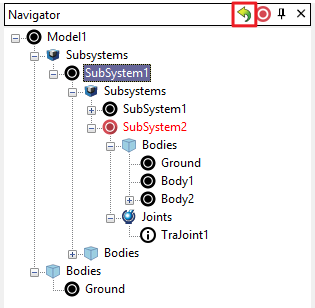
The ‘Move to the Subsystem’ function places the model into the Edit mode of the selected Subsystem or Body with one click. To use, right-click on the name of the Subsystem or Body to enter Edit Mode (shortcut key: I).
Click play below to watch a video on the new System Navigator functions.
CAD Import Enhancements
The ‘Import CAD’ function in RecurDyn V9R2 has been enhanced to automatically create each Body and Subsystem by merging multiple geometries based on the hierarchical structure of the original CAD file. The user can control this process through an intuitive user interface. The major benefits are:
- The user does not have to group all of the individual solids manually, and
- The user can efficiently select solids or subassembly geometry to be omitted during the import.
This allows the user to take advantage of the organizational structures of the original CAD file and reduces the time needed to import and process CAD geometry.
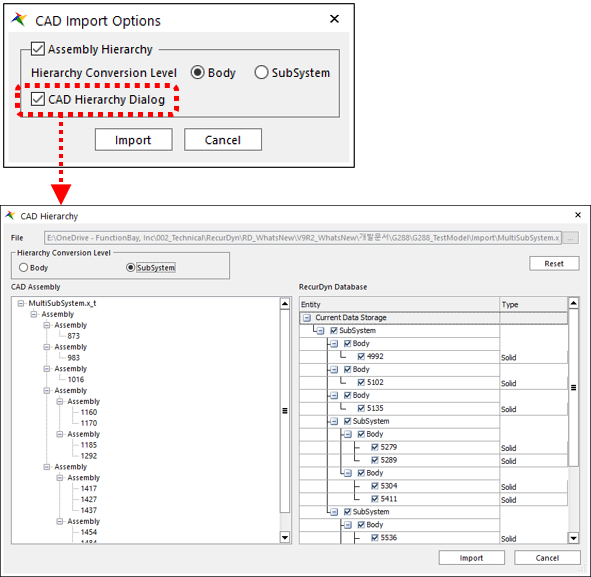
When importing CAD files, it is now possible to effectively import the hierarchical structure from CAD into RecurDyn by using ‘CAD Import Options’ as shown below. The Hierarchy Conversion Level allows users to select the target of the CAD hierarchical structure to be a Body or Subsystem when importing geometry from a CAD file into RecurDyn.
The CAD Hierarchy dialog box allows the user to editing the hierarchical structure of the CAD file in detail, specifically omitting and merging of the CAD solids to be imported.
The CAD Import Options dialog can be enabled or disabled by toggling the option, ‘CAD Import Options Dialog when Importing CAD Files’ that is located in the Home tab, Setting group, and the CAD command.
General Grouping
It is now possible for users to group and manage a set of desired entities in order to improve the efficiency of working with a complex RecurDyn model.
It is especially convenient to be able to perform ‘Object Control’ (move), changing layers, and changing rendering types of the entities in the Group at the same time.
In the Group Properties dialog box, it is also possible to display the Properties dialog box of an individual entity (or entities). It allows users to manage modeling entities more efficiently because it is easier to select and edit desired entities when they are grouped into logical subsets.
Click play to watch a video on the use of general grouping in RecurDyn.